
Welcome to the Open IT Global Official Procurement Portal. This guide is designed to provide a transparent, audit-ready framework for international B2B transactions.
To ensure seamless delivery of our technical assets and consulting services, our platform adheres to strict global tax and identity validation protocols. Whether you are engaging through our Consulting Implementation Modules or acquiring assets via our Technical Catalog, this step-by-step walkthrough will assist your procurement department in meeting internal compliance, local tax self-assessment (Reverse Charge), and secure payment requirements.
All engagements are governed by the Open IT Global Omnibus Legal Framework, ensuring technical accuracy and professional accountability from initial selection to project activation.
PHASE I: Solution Selection & Scope
Objective: Identify and validate the specific technical engagement or digital asset required for your organization.
Step 1: Portal Access
Navigate to the Open IT Global homepage https://openitglobal.com.
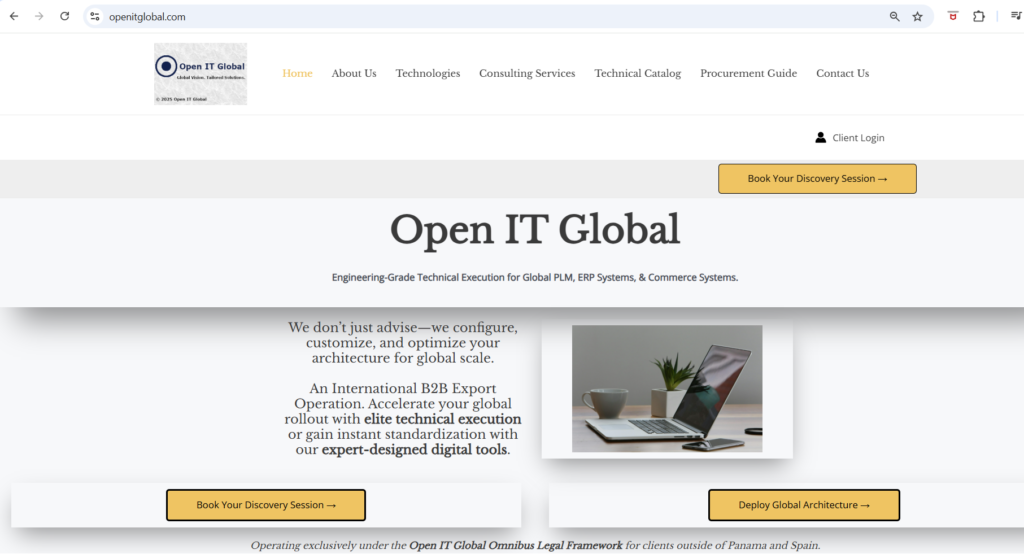
Step 2: Engagement Path Selection (💼 Consulting Services | 💻 Technical Catalog)
Select your path to view the specific selection protocol.
Consulting Services
For fixed-scope Implementation Modules, visit Consulting Services.
Review technical modules (e.g., Core Commerce Implementation), examine the Consulting Engagement Management Protocol, and validate the Investment Terms before clicking Buy Now.
Step 1: Access: Navigate to Consulting Services.
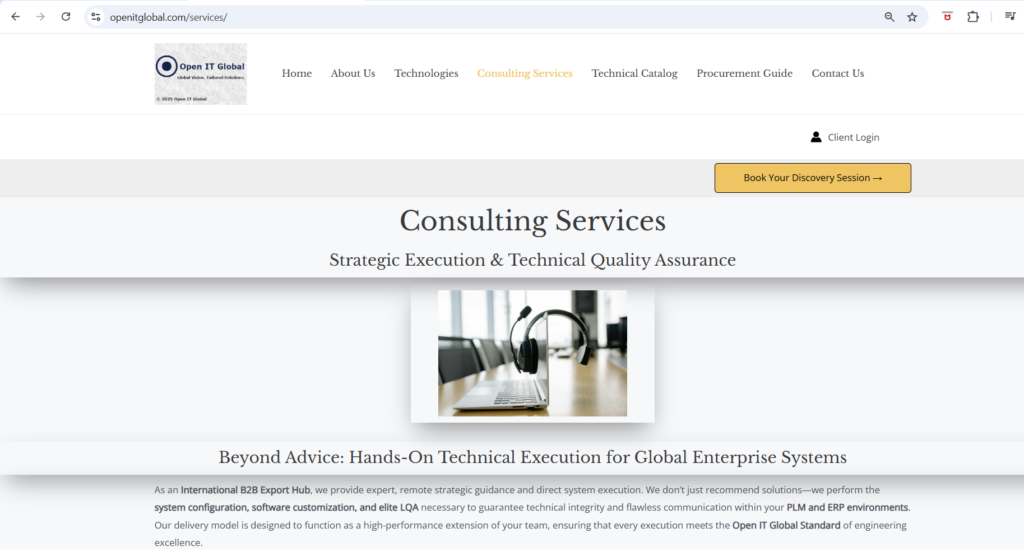
Step 2: Module Selection: Review the fixed-scope modules (e.g., Core Commerce Implementation) and click Buy Now to enter the technical brief.
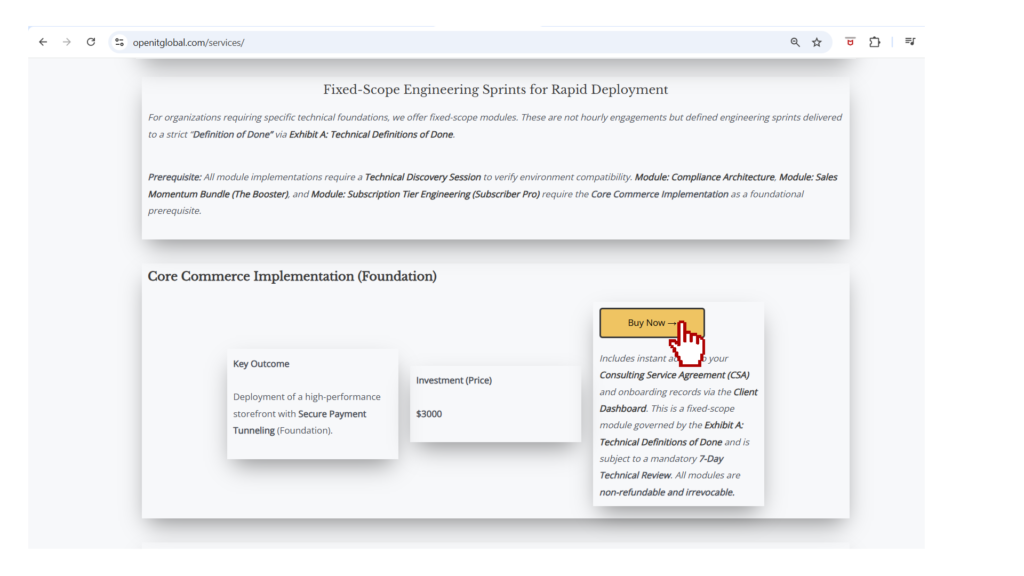
Step 3: Technical Validation: On the product page, you must validate three critical sections before proceeding:
Technical Specifications: Engineering scope.
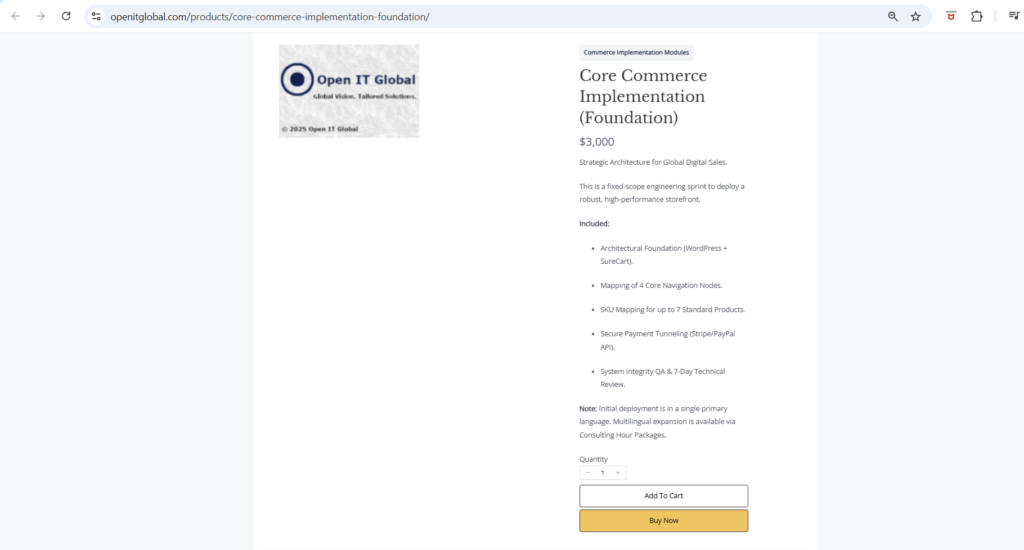
Engagement Protocol: Management and delivery stages.
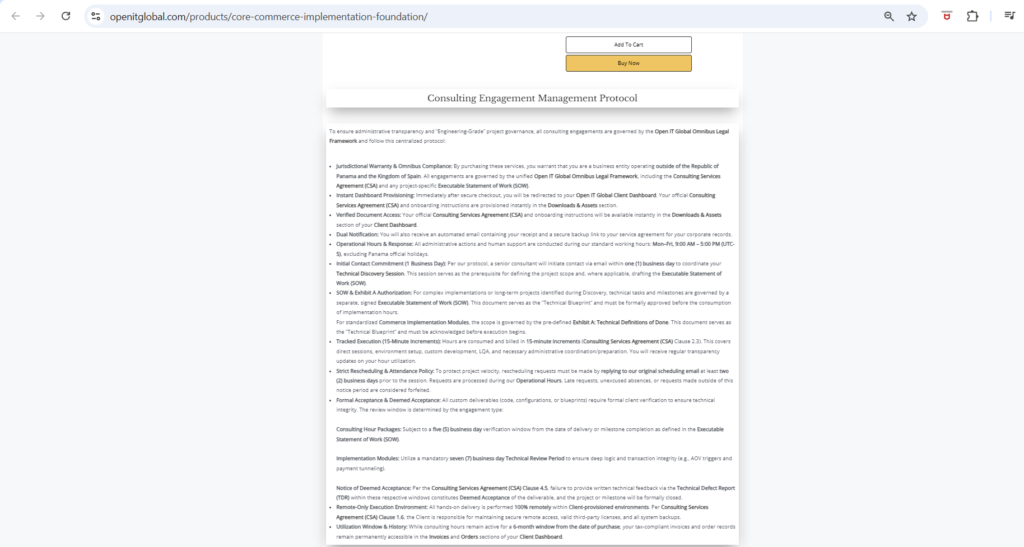
Investment Terms: Final B2B pricing.
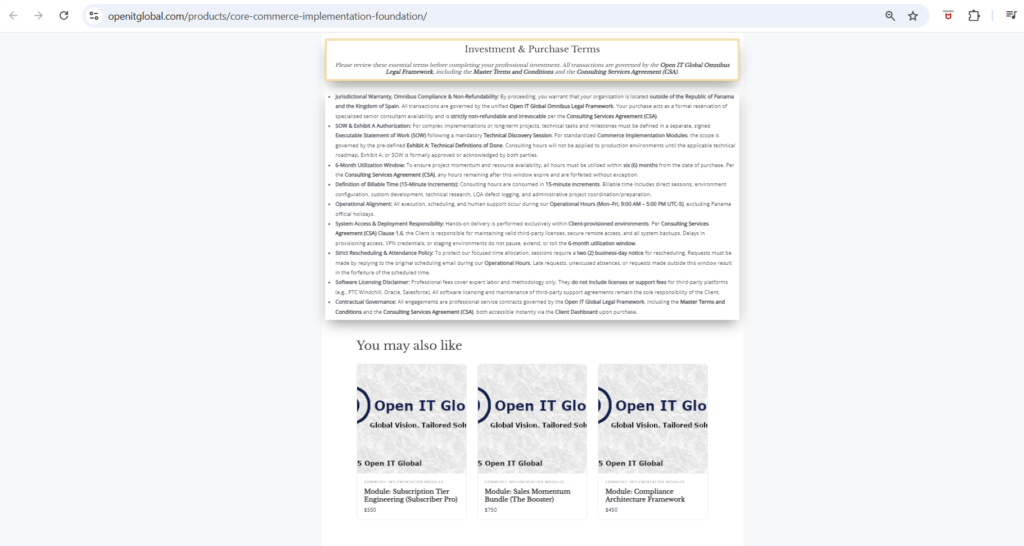
Step 4: Initiation: Click Buy Now to move to Phase II (Compliance & Identity).
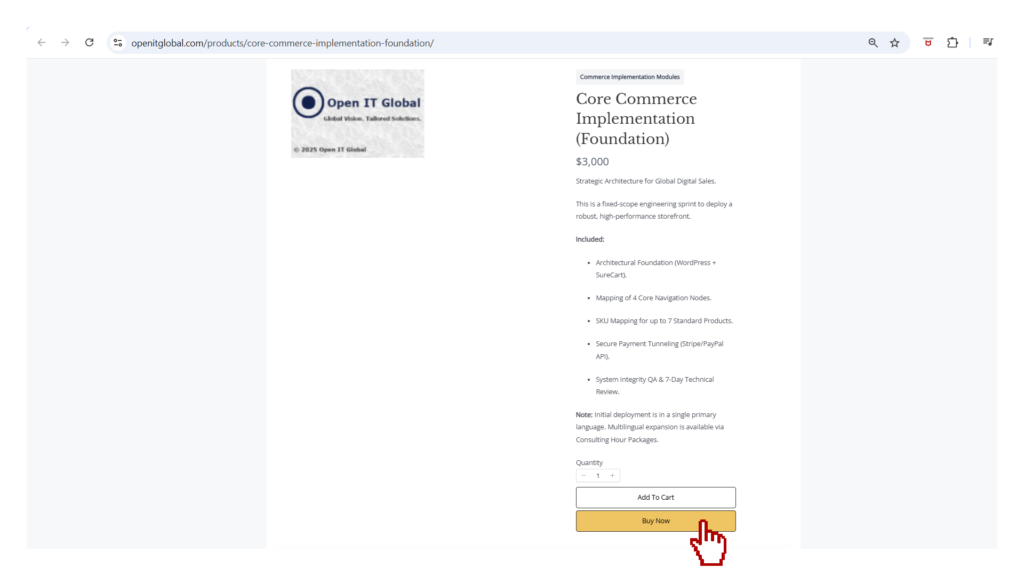
Need a full-screen visual walkthrough? [View Detailed Consulting Services Selection Guide ↗]
Technical Catalog
For ready-to-deploy Digital Products, visit the Technical Catalog.
Review the Secure Delivery Digital Protocol and technical specifications (e.g., Windchill Master Deployment Blueprint) before initiating the procurement process.
Step 1: Access: Navigate to Technical Catalog.
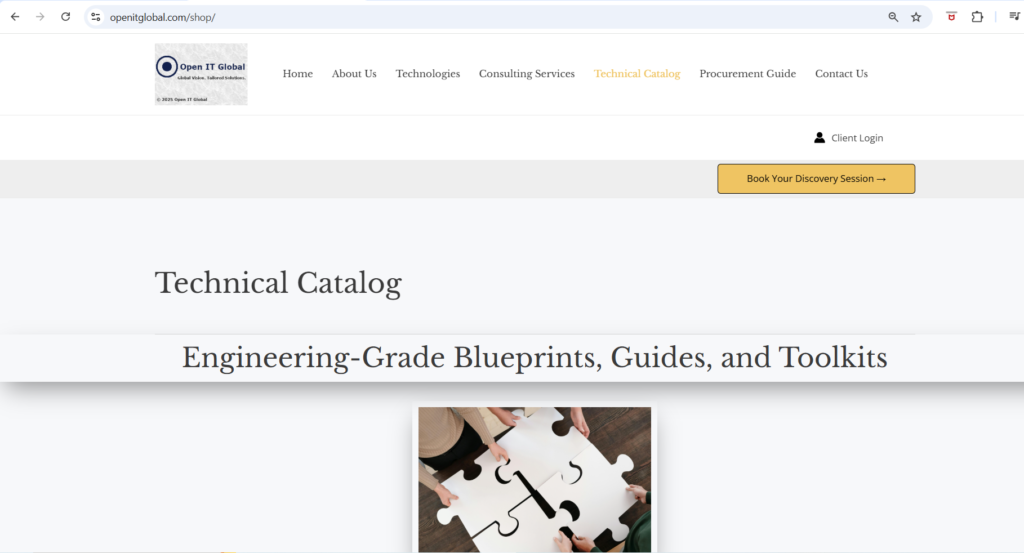
Step 2: Asset Selection: Browse the digital product overview (e.g., Windchill Master Deployment Blueprint) and click Buy Now to access the full technical dossier.
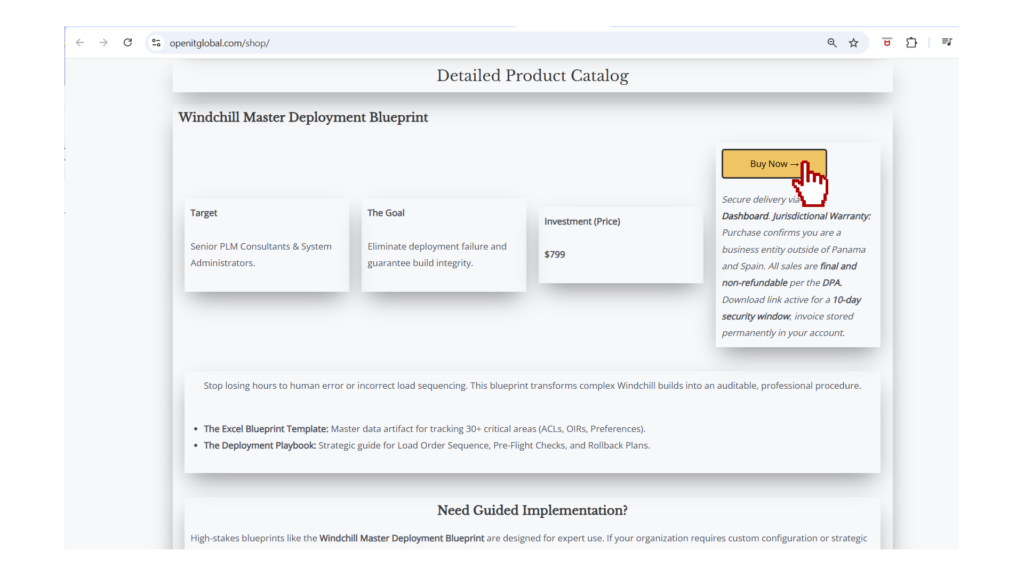
Step 3: Digital Validation: On the product page, verify these three critical compliance sections:
Technical Specifications: Engineering requirements and compatibility.
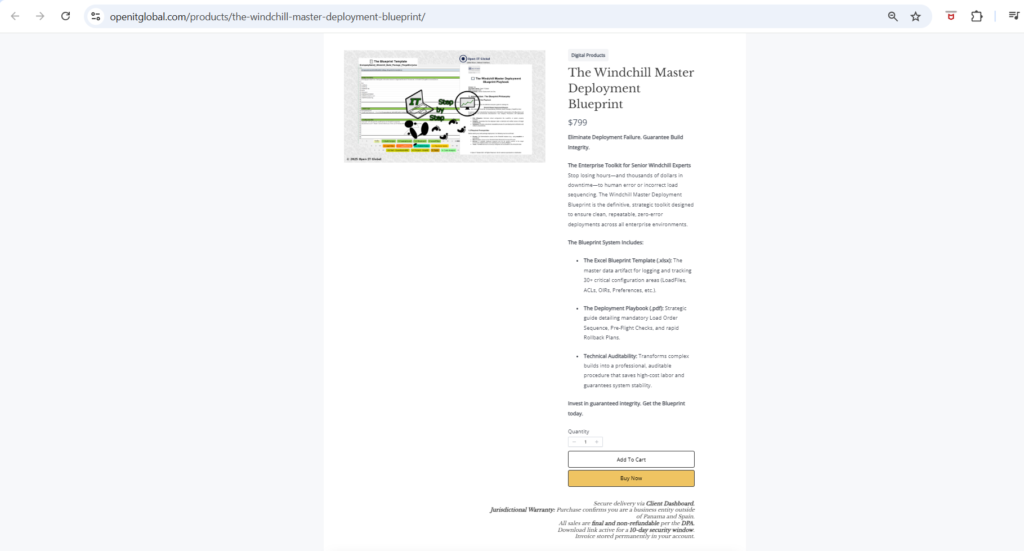
Secure Delivery Protocol: Digital fulfillment and dashboard provisioning.
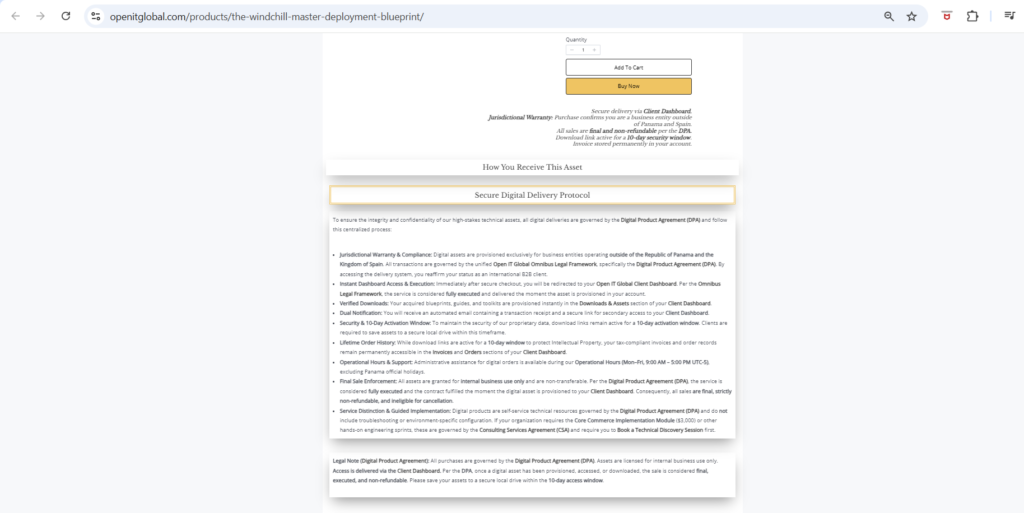
Investment Terms: B2B pricing and licensing scope.
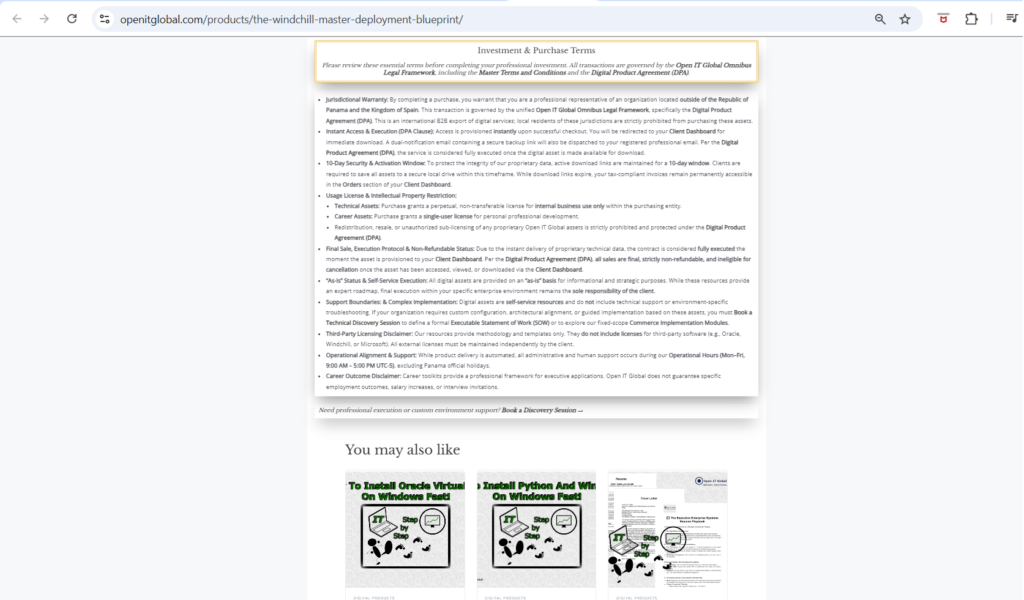
Step 4: Initiation: Click Buy Now to move to Phase II (Compliance & Identity).
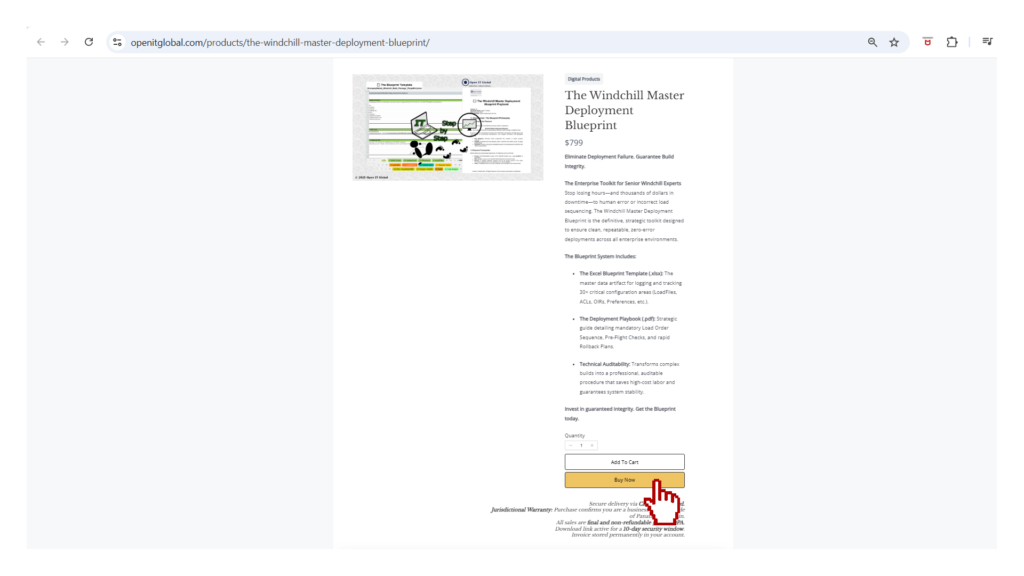
Need a full-screen visual walkthrough? [View Detailed Catalog Selection Guide ↗]
PHASE II: Compliance & Identity Data
Objective: Capture mandatory corporate identifiers to ensure international tax compliance and audit-ready invoicing.
Step 3: Primary Contact & Entity Identification
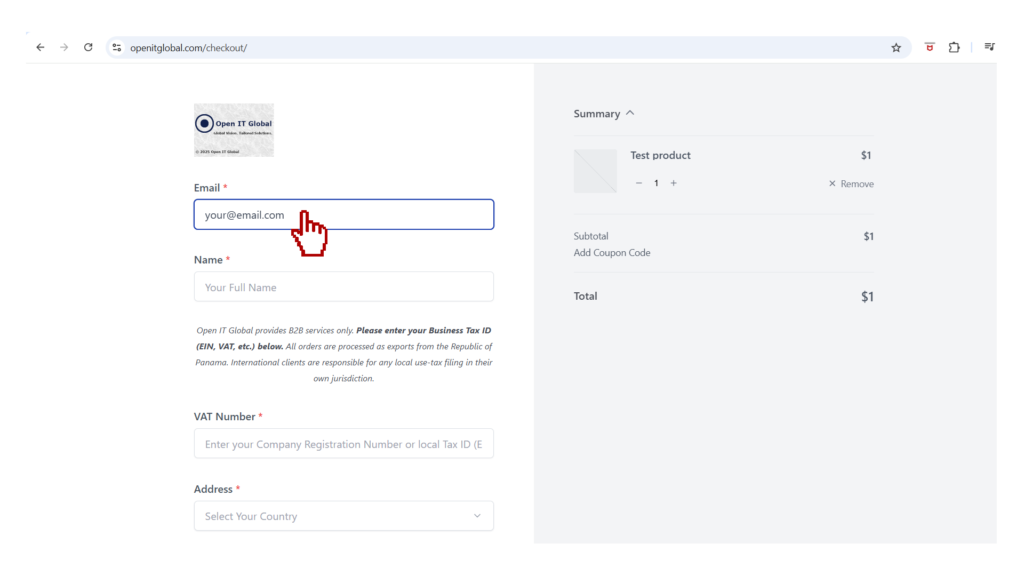
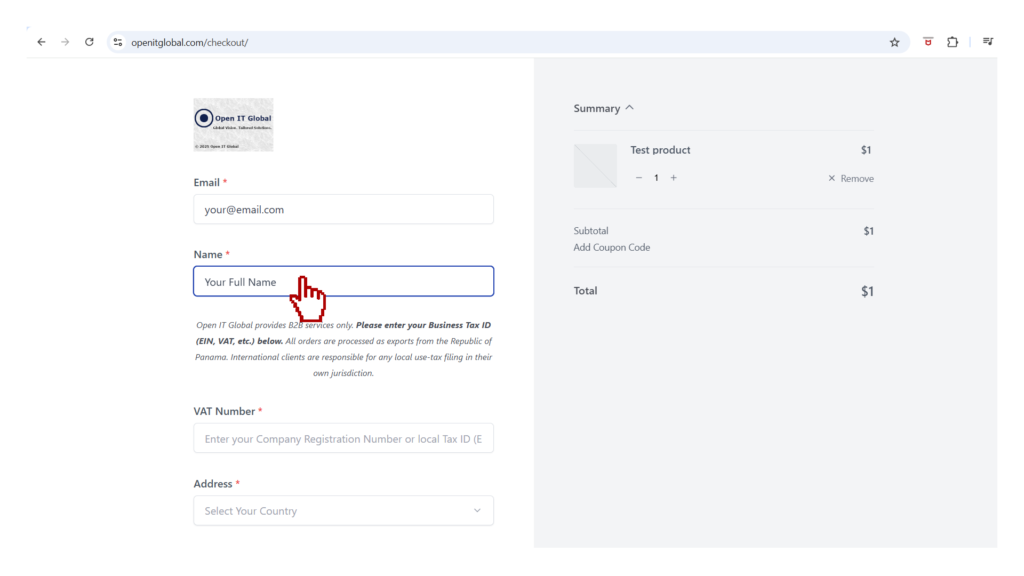
On the Checkout interface, input the Authorized Point of Contact (Full Name) and the Corporate Email Address where technical credentials and invoices will be dispatched.
Step 1: Enter your Email.
Step 2: Enter your Full Name.
Step 4: Localized Jurisdictional Validation
Select your business region to apply the correct tax treatment and ID format.
To ensure your Audit-Ready Receipt is correctly generated and to avoid payment validation errors, please follow the specific path for your business jurisdiction:
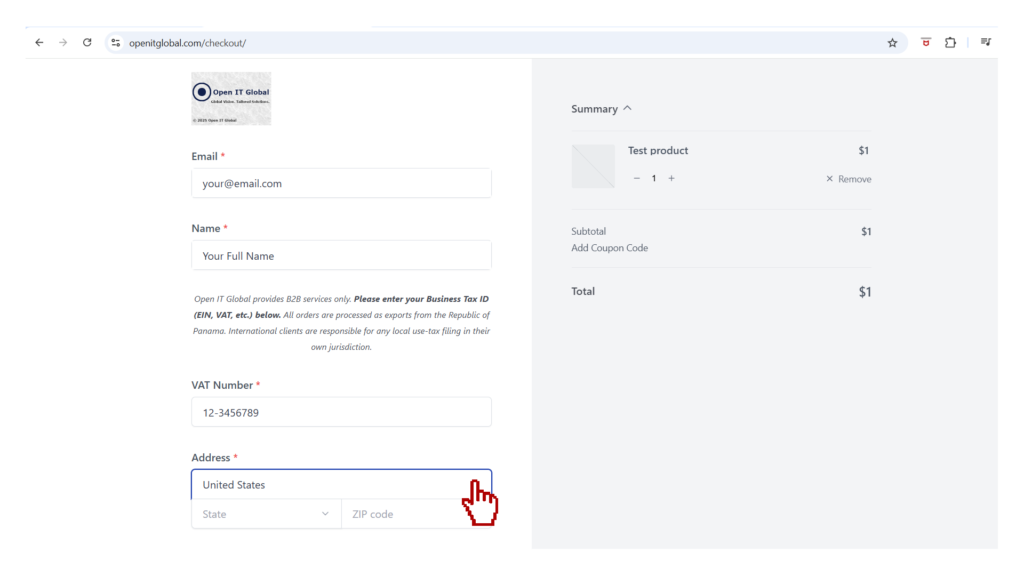
🇺🇸 United States Entities
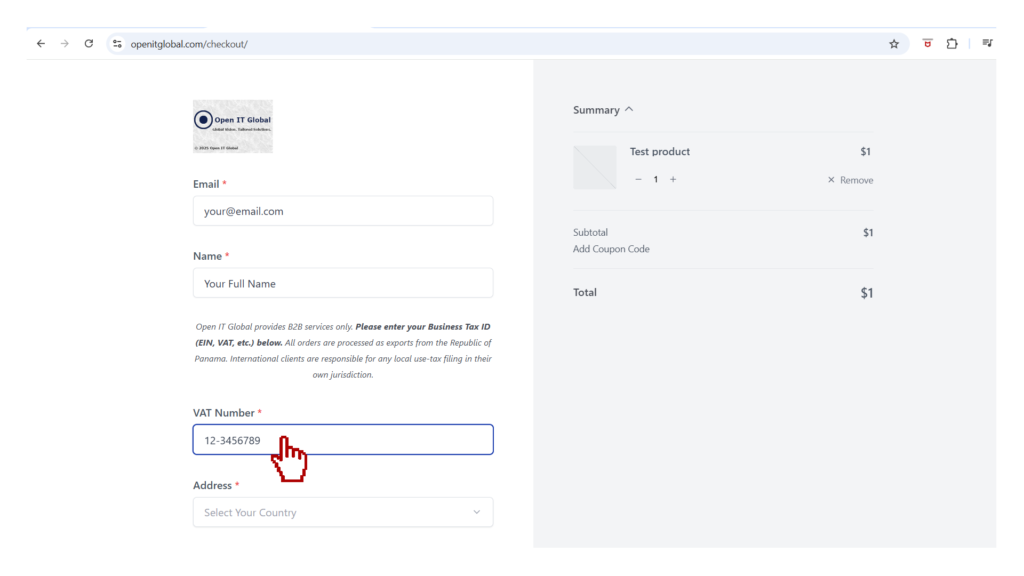
- Primary Tax Identifier: EIN (Employer Identification Number).
- Key Requirement: The EIN must strictly match the Legal Entity Name and the Billing ZIP Code of your corporate card to pass PCI-DSS authorization.
🇨🇦 Canadian Entities
- Primary Tax Identifier: 9-Digit Business Number (BN).
- Key Requirement: Mandatory selection of your specific Province during checkout to ensure accurate GST/HST/QST tax calculation.
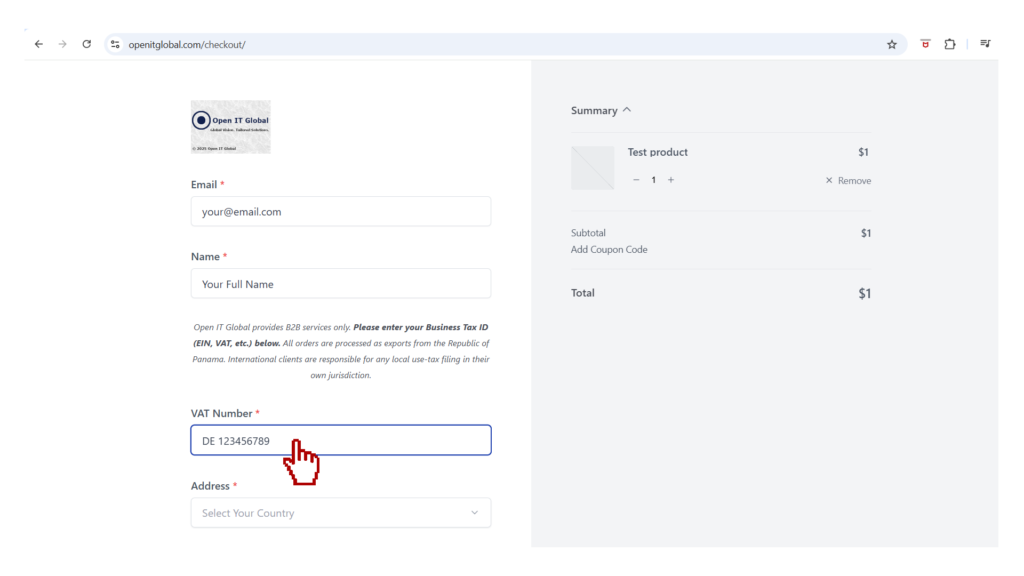
🇪🇺 European Union Entities
- Primary Tax Identifier: VAT Number (VIES).
- Key Requirement: Real-time VIES validation is required to apply the 0% VAT (Reverse Charge) protocol for intra-community B2B transactions.
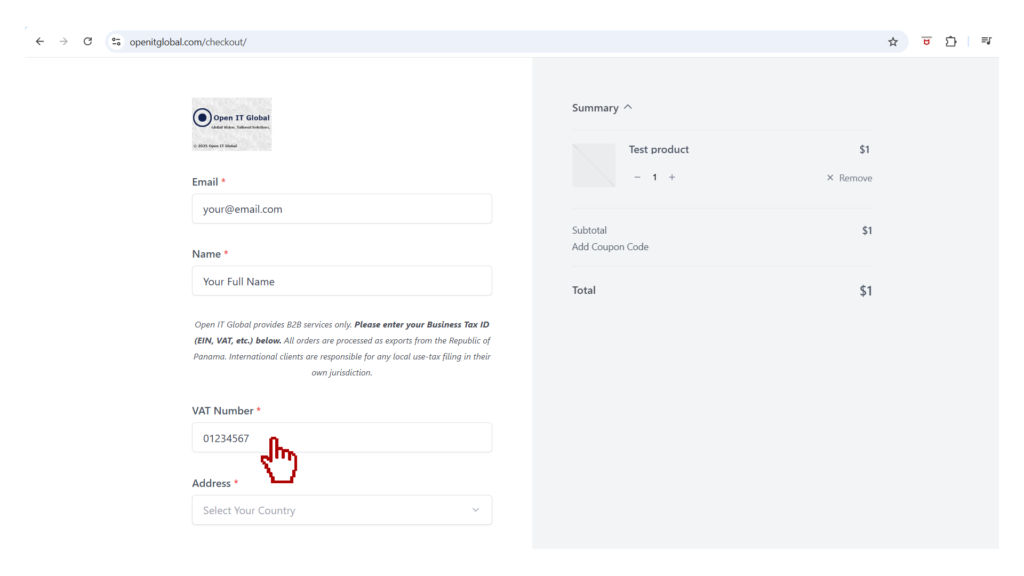
🇬🇧 United Kingdom Entities
- Primary Tax Identifier: UK VAT Registration Number.
- Key Requirement: Digital validation compliant with post-Brexit HMRC procurement protocols for international services.
🌐 Global / Rest of World
- Primary Tax Identifier: Local Corporate Tax ID (e.g., RUC, RFC, NIT, GST).
- Key Requirement: The Registered Company Name must strictly match the Tax ID provided to ensure an audit-ready fiscal receipt.
Step 5: Billing Registry
Objective: Enter the official legal address of your entity. This must match the address on file with your corporate credit card or PayPal account to ensure a successful transaction.
Enter the Company Billing Address exactly as registered in your local tax authority to ensure a successful PCI-compliant transaction.
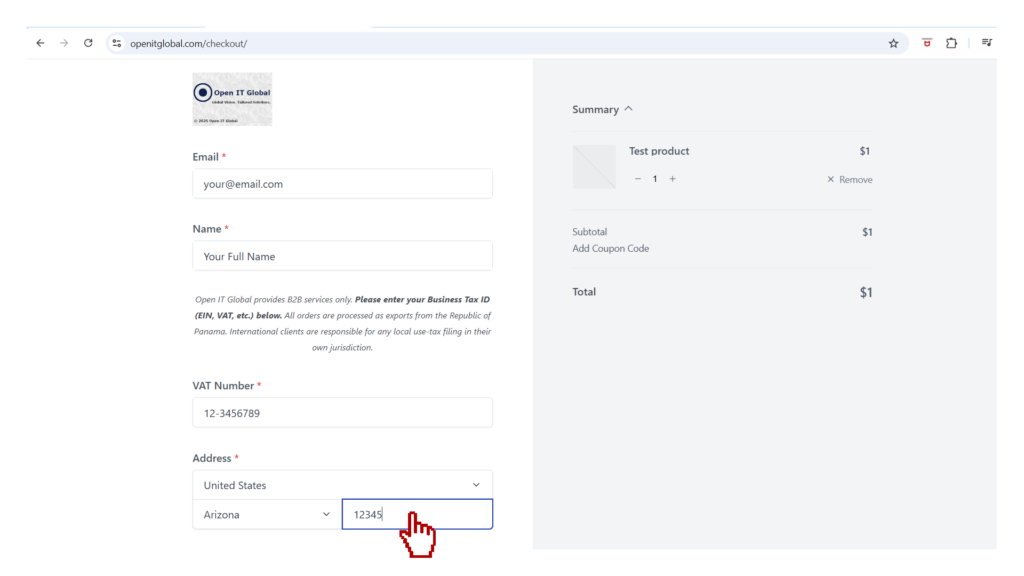
Select your region to view the required address structure and an example of a correctly formatted billing entry.
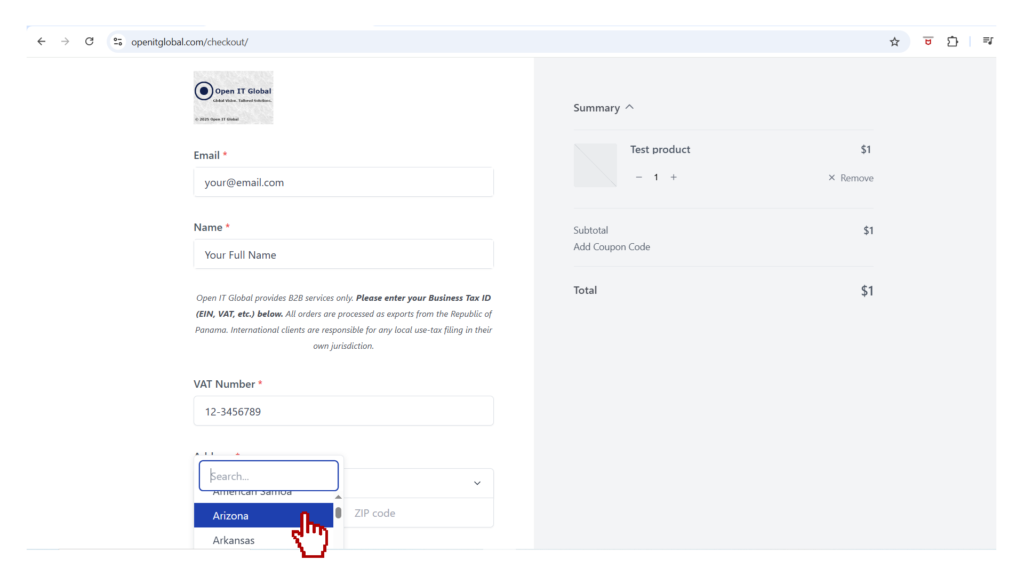
- Focus: ZIP Code & State.
- Requirement: The 5-digit ZIP code is the most critical field for US card authorization.
- Focus: Postal Code & Province.
- Requirement: Use the standard Alphanumeric Postal Code (A1B 2C3).
- Focus: VAT-Linked Seat.
- Requirement: Address must match the one linked to your VIES/VAT ID.
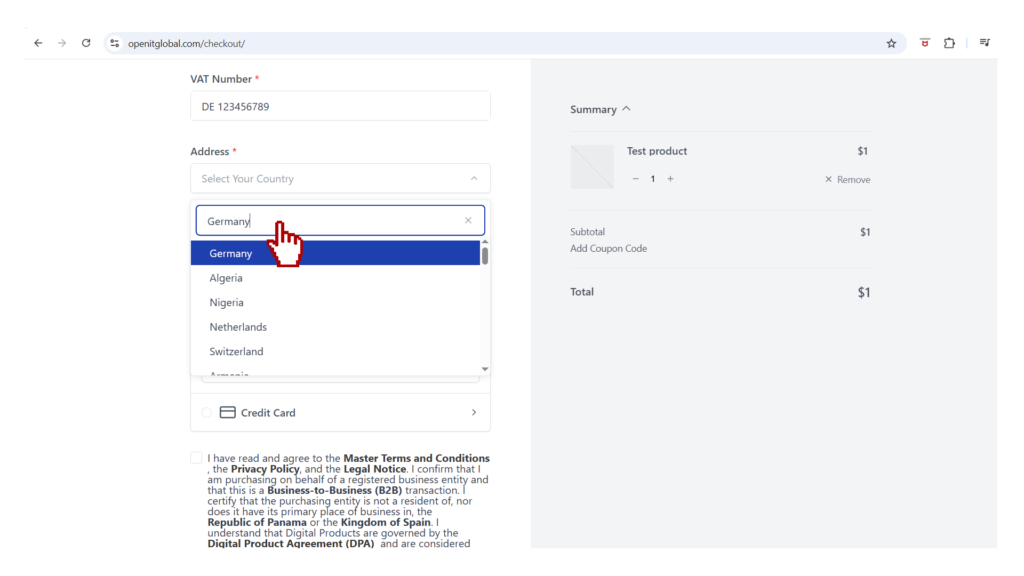
- Focus: VAT-Linked Seat.
- Requirement: Address must match the one linked to your VIES/VAT ID.
- Focus: International Standard.
- Requirement: Use the legal address as it appears on your Tax Certificate.
PHASE III: Secure Payment Execution
Objective: Complete the transaction via a secure, encrypted tunnel.
Step 6: Payment Gateway Selection & Omnibus Legal Acceptance
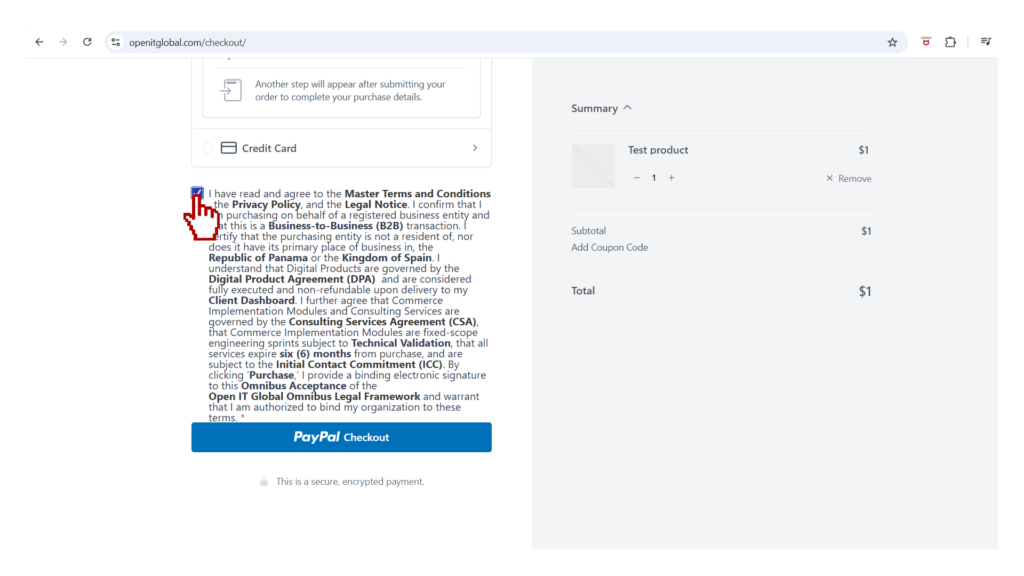
Select your payment method below. Note that you must check the Omnibus Legal Acceptance box within the selected tab to activate the payment gateway.
Option A:  PayPal Checkout Protocol
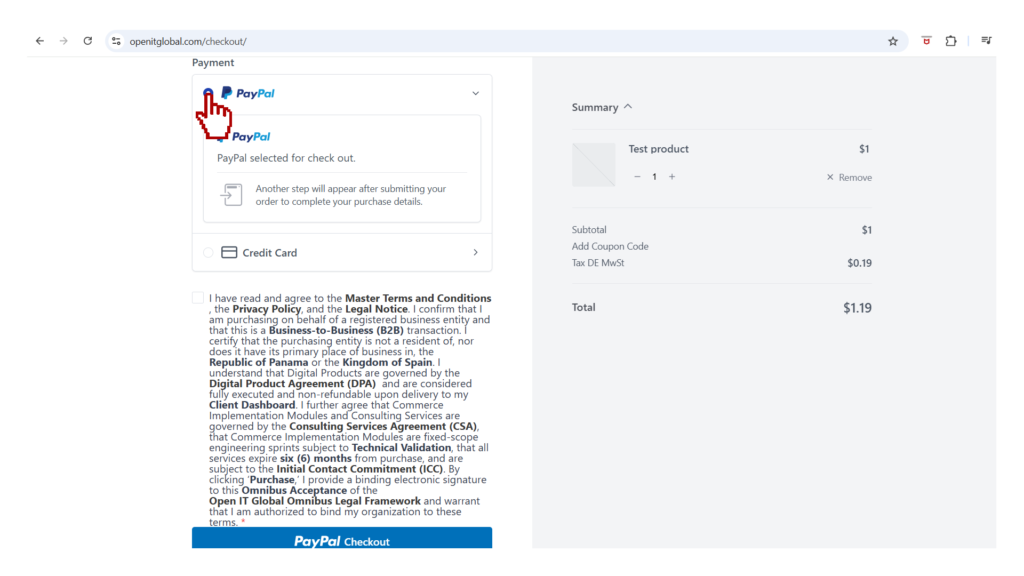
Omnibus Legal Acceptance (Mandatory)
Review the Open IT Global Omnibus Legal Framework. By checking the acceptance box, you provide a binding electronic signature confirming this is a B2B transaction and acknowledging the governing terms (MTC, DPA, CSA, and ICC).
Before entering your payment details, you must review and check the acceptance box for the Open IT Global Omnibus Legal Framework.
Checkbox Text:
I have read and agree to the Master Terms and Conditions, the Privacy Policy, and the Legal Notice. I confirm that I am purchasing on behalf of a registered business entity and that this is a Business-to-Business (B2B) transaction. I certify that the purchasing entity is not a resident of, nor does it have its primary place of business in, the Republic of Panama or the Kingdom of Spain. I understand that Digital Products are governed by the Digital Product Agreement (DPA) and are considered fully executed and non-refundable upon delivery to my Client Dashboard. I further agree that Commerce Implementation Modules and Consulting Services are governed by the Consulting Services Agreement (CSA), that Commerce Implementation Modules are fixed-scope engineering sprints subject to Technical Validation, that all services expire six (6) months from purchase, and are subject to the Initial Contact Commitment (ICC). By clicking ‘Purchase,’ I provide a binding electronic signature to this Omnibus Acceptance of the Open IT Global Omnibus Legal Framework and warrant that I am authorized to bind my organization to these terms.
Option B: 💳 Debit or Credit Card Protocol
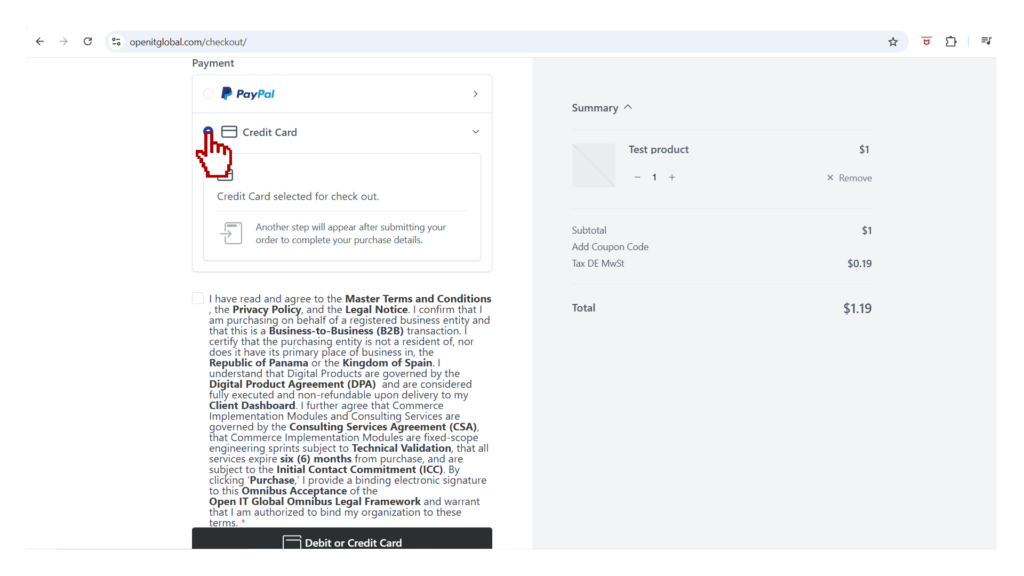
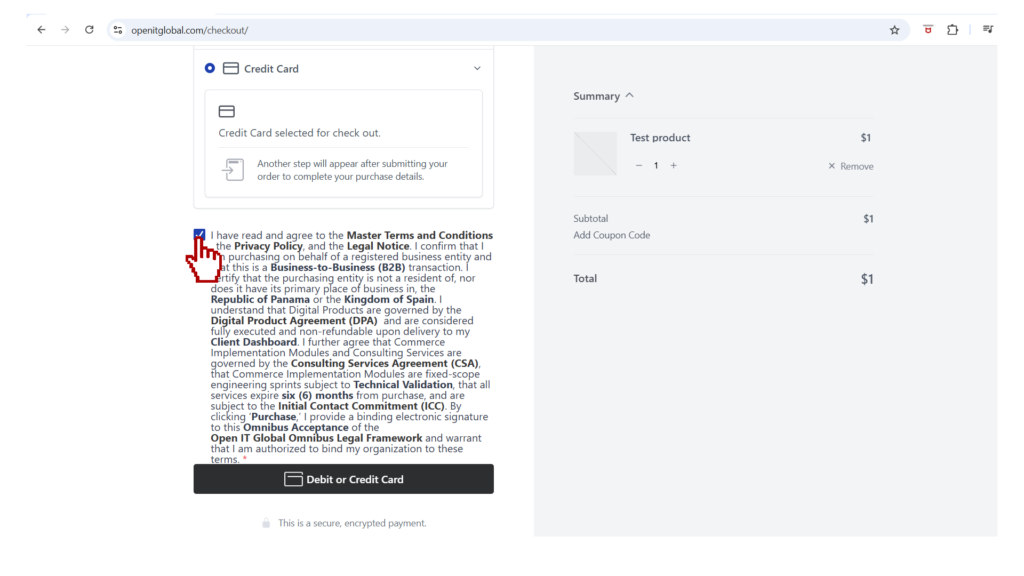
Omnibus Legal Acceptance (Mandatory)
Review the Open IT Global Omnibus Legal Framework. By checking the acceptance box, you provide a binding electronic signature confirming this is a B2B transaction and acknowledging the governing terms (MTC, DPA, CSA, and ICC).
Before entering your payment details, you must review and check the acceptance box for the Open IT Global Omnibus Legal Framework.
Checkbox Text:
I have read and agree to the Master Terms and Conditions, the Privacy Policy, and the Legal Notice. I confirm that I am purchasing on behalf of a registered business entity and that this is a Business-to-Business (B2B) transaction. I certify that the purchasing entity is not a resident of, nor does it have its primary place of business in, the Republic of Panama or the Kingdom of Spain. I understand that Digital Products are governed by the Digital Product Agreement (DPA) and are considered fully executed and non-refundable upon delivery to my Client Dashboard. I further agree that Commerce Implementation Modules and Consulting Services are governed by the Consulting Services Agreement (CSA), that Commerce Implementation Modules are fixed-scope engineering sprints subject to Technical Validation, that all services expire six (6) months from purchase, and are subject to the Initial Contact Commitment (ICC). By clicking ‘Purchase,’ I provide a binding electronic signature to this Omnibus Acceptance of the Open IT Global Omnibus Legal Framework and warrant that I am authorized to bind my organization to these terms.
Step 7: Transaction Authorization
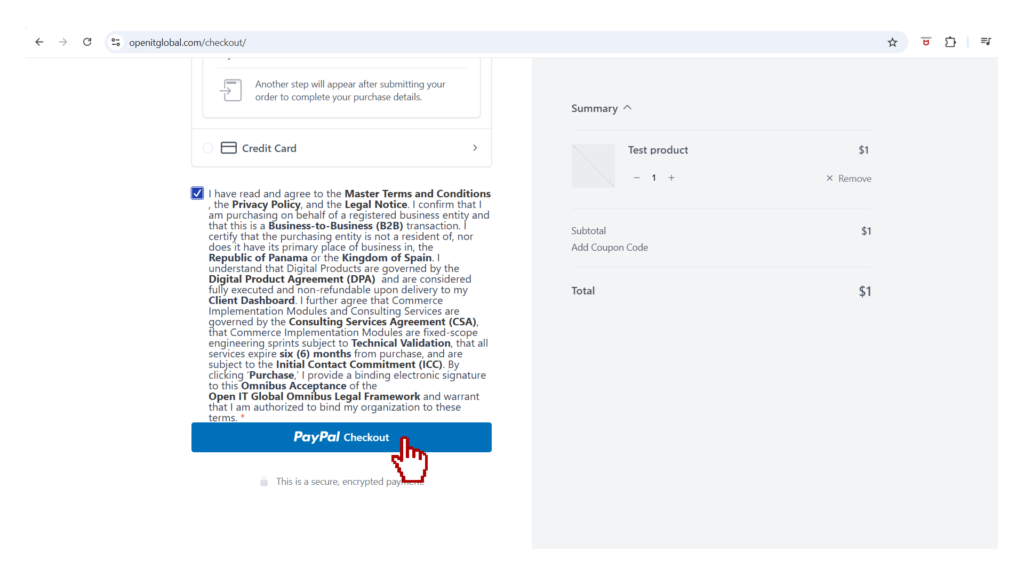
Option A: PayPal Checkout Protocol
Click the PayPal Checkout button to open the secure pop-up window.
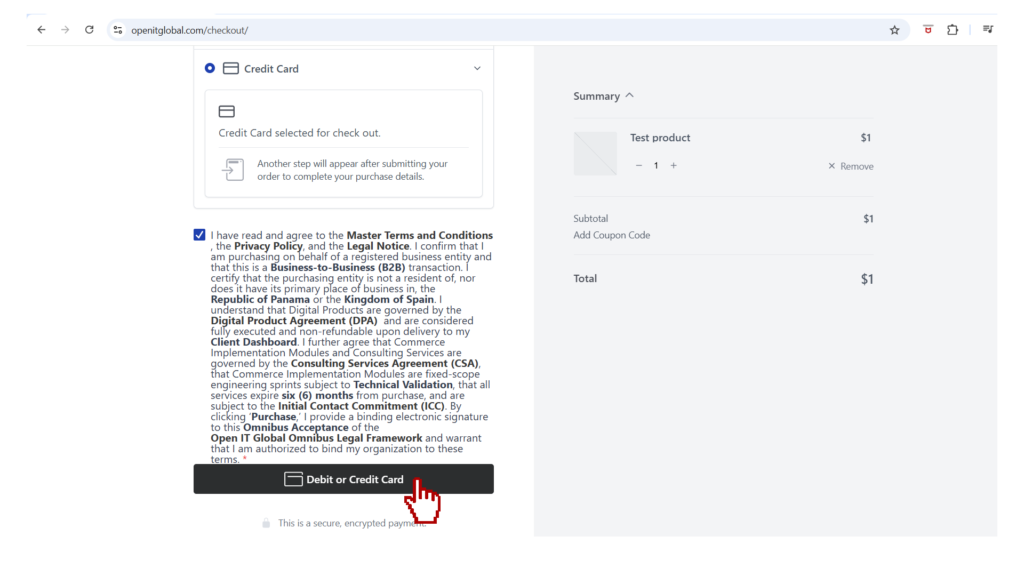
Option B: 💳 Debit or Credit Card Protocol
Click the Debit or Credit Card button to to open the secure pop-up window.
Step 8: Localized Payment Walkthrough (Visual Support)
Select your jurisdiction, then choose your payment method to view the specific execution steps.
🇺🇸 USA Payment Walkthrough
Option A: PayPal Checkout Protocol
Step 1: Contact & Identity
Data: Enter your Corporate Email, Full Name, and Mobile Phone Number.
Shortcut: You may use the PayPal Login button to auto-fill these fields instantly. A mobile phone is required for identity synchronization.
Validation: The system checks your ZIP Code against your PayPal profile.
Step 2: Financial Data
Entry: Input your 16-digit Card Number, Expiration Date, and CVV.
Step 3: Billig Address
Focus: The 5-digit ZIP Code is the mandatory security field.
Validation: Ensure the Street Address and ZIP strictly match the records on file with your corporate bank to prevent authorization declines.
Step 4: Transaction Authorization
Path 1 (Guest Checkout): Click “Continue” or “Pay Now” to finalize as a one-time user.
Path 2 (Account Creation): Click “Agree & Pay” if you choose to save your business profile.
Option B: 💳 Debit or Credit Card Protocol
Step 1: Contact & Identity
Data: Enter your Corporate Email, Full Name, and Mobile Phone Number.
Note: A mobile phone is required for identity verification and transaction alerts.
Validation: The system validates your data directly with the issuing bank in real-time.
Step 2: Financial Data
Entry: Input your 16-digit Card Number, Expiration Date, and CVV.
Step 3: Billig Address
Focus: The 5-digit ZIP Code is the mandatory security field.
Validation: Ensure the Street Address and ZIP strictly match the records on file with your corporate bank to prevent authorization declines.
Step 4: Transaction Authorization
Path 1 (Guest Checkout): Click “Continue” or “Pay Now” to finalize as a one-time user.
Path 2 (Account Creation): Click “Agree & Pay” if you choose to save your business profile.
- [ View Detailed USA Visual Guide → ]
🇨🇦 Canada Payment Walkthrough
Option A: PayPal Checkout Protocol
Step 1: Contact & Identity
⦁ Data: Enter your Corporate Email, Full Name, and Mobile Phone Number.
⦁ Shortcut: You may use the PayPal Login button to auto-fill your profile.
⦁ Note: Security Note: Ensure your mobile number is accessible, as Canadian banks may require a one-time verification code (2FA) to authorize international corporate payments.
Step 2: Financial Data
⦁ Entry: Input your 16-digit Card Number, Expiration Date, and CVV.
⦁ Tax ID Sync: Verify that your 9-digit Business Number (BN) and Province match the selection made in Phase II to ensure correct GST/HST/QST calculation.
Step 3: Billing Address & Tax Alignment
Structure: Enter the full legal address of your entity.
Validation: This address must strictly match your Tax ID (BN) records. A mismatch in the Postal Code (Format: A1B 2C3) is the most common cause for transaction declines in Canada.
Focus: Ensure the Province is correctly selected to unlock the appropriate regional tax fields.
Step 4: Account Selection
Path 1 (Create PayPal Account): Set a secure password and enter your Date of Birth.
⦁ Final Button: Click “Agree & Pay” or “Create Account & Pay Now“.
Path 2 (Guest Checkout): Select “No, I don’t want an account now” (or similar opt-out).
⦁ Final Button: Click “Pay Now” to execute a one-time transaction.
Option B: 💳 Debit or Credit Card Protocol
Step 1: Contact & Identity
⦁ Data: Enter your Corporate Email, Full Name, and Mobile Phone Number.
⦁ Security Note: Ensure your mobile number is accessible. Canadian banks often require Two-Factor Authentication (2FA) via SMS to authorize international B2B payments.
Step 2: Financial Data & Tax Validation
⦁ Entry: Input your 16-digit Card Number, Expiration Date, and CVV.
⦁ Tax ID Sync: Verify that your 9-digit Business Number (BN) matches the selection made in Phase II to ensure the correct tax calculation (GST, HST, or QST) is applied to your final total.
Step 3: Billing Address & Tax Alignment
Structure: Enter the full legal address of your entity.
Validation: This address must strictly match your Tax ID (BN) records. A mismatch in the Postal Code (Format: A1B 2C3) is the most common cause for transaction declines in Canada.
Focus: Your selected billing province must be consistent throughout the process to ensure an Audit-Ready Receipt.
Step 4: Account Selection
Path 1 (Create PayPal Account): Set a secure password and enter your Date of Birth.
⦁ Final Button: Click “Agree & Pay” or “Create Account & Pay Now“.
Path 2 (Guest Checkout): Select “No, I don’t want an account now” (or similar opt-out).
⦁ Final Button: Click “Pay Now” to execute a one-time transaction.
🇪🇺 European Union Payment Walkthrough
Option A: PayPal Checkout Protocol
Step 1: Contact & Identity
⦁ Data: Enter your Corporate Email, Full Name, and Mobile Phone Number.
⦁ Shortcut: You may use the PayPal Login button to auto-fill your profile.
⦁ Note: A valid mobile number is mandatory for SCA (Strong Customer Authentication) in UK/EU regions. Prepare for Strong Customer Authentication (a push notification from your bank might appear).
Tax ID: Verify that your VIES-validated VAT ID is active to ensure the 0% VAT (Reverse Charge) is applied.
Step 2: Financial Data
⦁ Entry: Input your 16-digit Card Number, Expiration Date, and CVV.
Step 3: Billing Address & Tax Alignment
⦁ Structure: Enter the full legal address of your entity.
⦁ Validation: This address must strictly match the Tax ID (VAT/BN/RUC) and jurisdiction selected in Phase II to ensure a valid Audit-Ready Receipt.
⦁ Focus: Ensure the Country and Province/State are correct to unlock localized security fields.
Step 4: Account Selection
Path 1 (Create PayPal Account): Set a secure password and enter your Date of Birth.
⦁ Final Button: Click “Agree & Pay” or “Create Account & Pay Now“.
Path 2 (Guest Checkout): Select “No, I don’t want an account now” (or similar opt-out).
⦁ Final Button: Click “Pay Now” to execute a one-time transaction.
Option B: 💳 Debit or Credit Card Protocol
Step 1: Contact & Identity
⦁ Data: Enter your Corporate Email, Full Name, and Mobile Phone Number.
⦁ Note: Security Note: A valid mobile number is mandatory for SCA (Strong Customer Authentication). Be prepared to authorize the transaction via a push notification from your Banking App or an SMS security code.
Step 2: Financial Data & Tax Validation
⦁ Entry: Input your 16-digit Card Number, Expiration Date, and CVV.
Tax ID: Ensure your VIES-validated VAT ID is active, and it was correctly entered in Phase II. This triggers the 0% VAT (Reverse Charge) mechanism for cross-border B2B transactions within the EU.
Step 3: Billing Address & Compliance
⦁ Structure: Enter the full legal address of your entity.
⦁ Validation: This address must strictly match the Tax ID (VAT) and jurisdiction selected in Phase II to ensure a valid Audit-Ready Receipt.
⦁ Focus: Ensure the Country and Province/State are correct to unlock localized security fields.
Step 4: Account Selection
Path 1 (Create PayPal Account): Set a secure password and enter your Date of Birth.
⦁ Final Button: Click “Agree & Pay” or “Create Account & Pay Now“.
Path 2 (Guest Checkout): Select “No, I don’t want an account now” (or similar opt-out).
⦁ Final Button: Click “Pay Now” to execute a one-time transaction.
🇬🇧 United Kingdom Payment Walkthrough
Option A: PayPal Checkout Protocol
Step 1: Contact & Identity
⦁ Data: Enter your Corporate Email, Full Name, and Mobile Phone Number.
⦁ Shortcut: You may use the PayPal Login button to auto-fill your profile.
⦁ Note: A valid mobile number is mandatory for SCA (Strong Customer Authentication) in UK/EU regions. Prepare for Strong Customer Authentication (a push notification from your bank might appear).
Step 2: Financial Data
⦁ Entry: Input your 16-digit Card Number, Expiration Date, and CVV.
Step 3: Billing Address & Tax Alignment
⦁ Structure: Enter the full legal address of your entity.
⦁ Validation: This address must strictly match the Tax ID (9-digit UK VAT) and jurisdiction selected in Phase II to ensure a valid Audit-Ready Receipt.
⦁ Focus: Use the correct Postcode format to unlock the secure handshake with your bank.
Step 4: Account Selection & Residency
Path 1 (Create PayPal Account): Set a secure password and enter your Date of Birth.
⚠️ Mandatory Residency Declaration: You must confirm if you are a tax resident of any other countries. If so, you will be prompted to select the country and provide the corresponding Tax ID (TIN) for each.
⦁ Final Button: Click “Agree & Pay” or “Create Account & Pay Now“.
Path 2 (Guest Checkout): Select “No, I don’t want an account now” (or similar opt-out).
⦁ Final Button: Click “Pay Now” to execute a one-time transaction.
Option B: 💳 Debit or Credit Card Protocol
Step 1: Contact & Identity
⦁ Data: Enter your Corporate Email, Full Name, and Mobile Phone Number.
⦁ Note: A valid mobile number is mandatory for SCA (Strong Customer Authentication) in UK/EU regions. Prepare for Strong Customer Authentication (a push notification from your bank might appear).
Step 2: Financial Data
⦁ Entry: Input your 16-digit Card Number, Expiration Date, and CVV.
Step 3: Billing Address & Tax Alignment
⦁ Structure: Enter the full legal address of your entity.
⦁ Validation: This address must strictly match the Tax ID (9-digit UK VAT) and jurisdiction selected in Phase II to ensure a valid Audit-Ready Receipt.
⦁ Focus: Use the correct Postcode format to unlock the secure handshake with your bank.
Step 4: Account Selection & Residency
Path 1 (Create PayPal Account): Set a secure password and enter your Date of Birth.
⚠️ Mandatory Residency Declaration: You must confirm if you are a tax resident of any other countries. If so, you will be prompted to select the country and provide the corresponding Tax ID (TIN) for each.
⦁ Final Button: Click “Agree & Pay” or “Create Account & Pay Now“.
Path 2 (Guest Checkout): Select “No, I don’t want an account now” (or similar opt-out).
⦁ Final Button: Click “Pay Now” to execute a one-time transaction.
🌐 Global Payment Walkthrough
Option A: PayPal Checkout Protocol
Step 1: Contact & Identity
⦁ Data: Enter your Corporate Email, Full Name, and Mobile Phone Number.
⦁ Shortcut: You may use the PayPal Login button to auto-fill your profile.
Security Note: A valid mobile number is essential. Be prepared to authorize the transaction via a push notification or SMS code from your issuing bank.
Step 2: Financial Data & Currency
⦁ Entry: Input your 16-digit Card Number, Expiration Date, and CVV.
⦁ Currency Note: If your card is not denominated in USD, your bank or PayPal may apply a local currency conversion rate at checkout.
⚠️ International Authorization: Ensure your corporate card is enabled for International/USD transactions to avoid immediate authorization declines.
Step 3: Billing Address & Tax Alignment
⦁ Structure: Enter the full legal address of your entity.
⦁ Validation: This address must strictly match the Tax ID (RUC, NIT, RFC, etc.) and jurisdiction selected in Phase II to ensure a valid Audit-Ready Receipt.
⦁ Focus: Ensure the Country and Province/State are correct to unlock the specific localized security fields required by your bank.
Step 4: Account Selection
Path 1 (Create PayPal Account): Set a secure password and enter your Date of Birth.
⦁ Final Button: Click “Agree & Pay” or “Create Account & Pay Now“.
Path 2 (Guest Checkout): Select “No, I don’t want an account now” (or similar opt-out).
⦁ Final Button: Click “Pay Now” to execute a one-time transaction.
Option B: 💳 Debit or Credit Card Protocol
Step 1: Contact & Identity
⦁ Data: Enter your Corporate Email, Full Name, and Mobile Phone Number.
⦁ Security Note: A valid mobile number is essential for transaction verification. Be prepared to authorize the payment via a push notification from your banking app or an SMS security code from your issuing bank.
Step 2: Financial Data & Currency
⦁ Entry: Input your 16-digit Card Number, Expiration Date, and CVV.
⦁ Currency Note: If your card is not denominated in USD, your bank or the payment processor may apply a local currency conversion rate at checkout.
⚠️ International Authorization: Ensure your corporate card is explicitly enabled for International/USD transactions. Some business cards require manual activation for cross-border digital procurement.
Step 3: Billing Address & Tax Alignment
⦁Structure: Enter the full legal address of your entity.
⦁ Validation: This address must strictly match the Tax ID (RUC, NIT, RFC, etc.) and jurisdiction selected in Phase II to ensure a valid Audit-Ready Receipt.
⦁ Focus: Ensure the Country and Province/State are correct to unlock the specific localized security fields required by your bank.
Step 4: Account Selection
Path 1 (Create PayPal Account): Set a secure password and enter your Date of Birth.
⦁ Final Button: Click “Agree & Pay” or “Create Account & Pay Now“.
Path 2 (Guest Checkout): Select “No, I don’t want an account now” (or similar opt-out).
⦁ Final Button: Click “Pay Now” to execute a one-time transaction.
